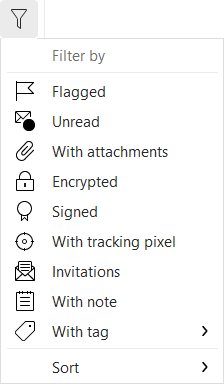
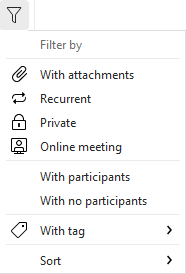
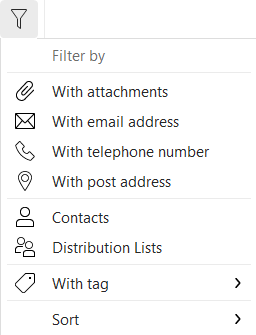
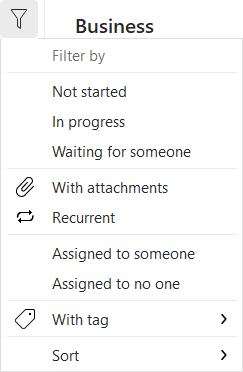
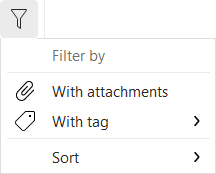
Quick filter is a fast and easy tool for sorting out all of your items in eM Client.
It can be used in Mail, Calendar, Contacts, Tasks and Notes. It is useful for when you want to quickly filter the results without the need of a specific search or a new search folder. If you want to see only the messages with an attachment, online meetings or a task with a specific tag, Quick filter is the perfect instrument for the job. It offers a wide range of filter options designed specifically for each section.
It is very simple. There is a small funnel icon (see above) in the top right corner of every item list. You just click on the icon, select the desired filter and confirm it. The items are going to be immediately filtered. You can always change the quick filter by selecting a different one.
If you don’t need it anymore, cancel the filter by clicking on the cross icon under the funnel button or reselect the filter in the context menu.

Although Quick filter is usable throughout all sections with exception of Attachments, it is not available in certain views. In Calendar, the Quick filter is usable only in Agenda and in Contacts, you can not use it in the Business cards view.
You can have only one filter active at a time. The only exception is filtering by Tags. When you move the mouse on the option “With tag” and press Ctrl or Shift key, you will be able to pick multiple tags at once. The filtered items are going to contain the specified combination of tags.